Use watchlists and shopping baskets
Save items to check their prices later. Use a basket to keep track of quantities, purchases and spending.
You'll need a verified account and access to watchlists and baskets.
Save an item
-
Open the item while logged in
Log in and open the item you want to save. If you don't have an account, create one and verify your email first.
-
Add it to your watchlist
Choose Save item → Add to watchlist.
-
Open your watchlist
Go to Watchlist → Saved items. Select View item to see an item's offers, or Refresh to update the displayed prices. Prices use retained advertisements; older records may be unavailable. Open the item to check observation dates and history coverage before buying.
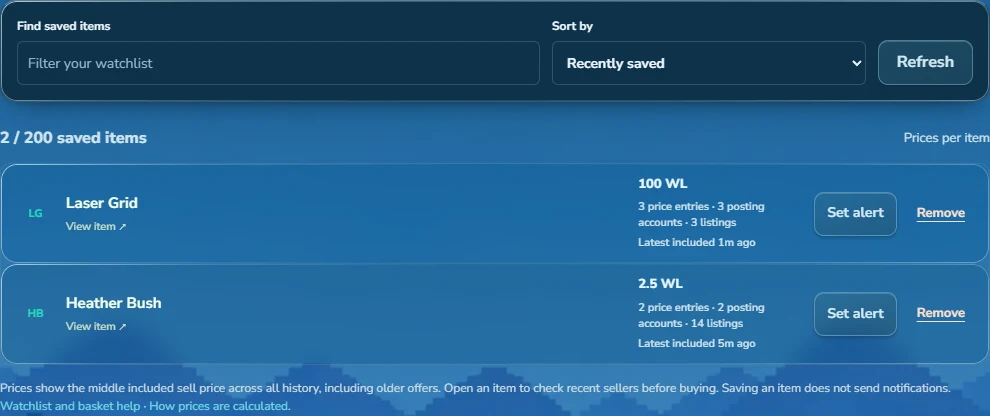 View full size
Make a shopping basket
-
Create a basket
Open Baskets, select New basket, enter a name and select Create basket. From an item page, Save item → Create a basket keeps that item ready. Review its quantity and select Add item after creating the basket.
-
Add items and quantities
Search under Find an item, choose a result, enter the Target quantity and select Add item.
-
Add notes or copy the list
Use Edit name and notes to add reminders. Select Copy shopping list if you want to paste the list elsewhere.
Import a materials list
-
Paste and review
In Baskets, choose Import materials. Paste one item and quantity per line, such as 200 × Dirt, Dirt: 200 or Dirt × 200. Choose Review list. Lists allow up to 200 lines, 40 KB and 256 characters per line. Checklist marks do not record purchases.
-
Fix names and check quantities
Repeated names combine by adding their quantities. Correct unknown names using item suggestions, edit quantities or explicitly Remove a line. Choose Recheck list after edits. The estimate excludes unresolved or unpriced costs; price evidence comes from historical sell advertisements.
-
Choose where to save
Name a new basket or choose an existing one. Existing items show their target and purchase progress. Remove those lines from the import or choose a new basket to keep all imported quantities separate. Choose Save items when ready. All lines save together; existing targets and purchases stay unchanged.
If the saved result is not confirmed, use Retry same save or Open basket to check it. The retry keeps the same request and cannot double the quantities.
Record what you paid
-
Add a purchase
Open Purchases · Add or correct. Enter how many you bought, the price and its unit. Check the total, then select Add purchase.
-
Check your totals
Actual spent adds up your recorded purchases. Estimated still to buy estimates the cost of the quantity you still need. Projected project cost adds those two amounts.
Example: buying items in two trades
- First purchase
- 40 items at 5 items/WL = 8 WL.
- Second purchase
- 60 items for 12 WL total.
- Result
- 100 acquired, 100 still needed, 20 WL spent.
If the current sell median is 2.5 WL per item, the remaining 100 items would cost an estimated 250 WL. Adding the 20 WL already spent gives a projected cost of 270 WL.
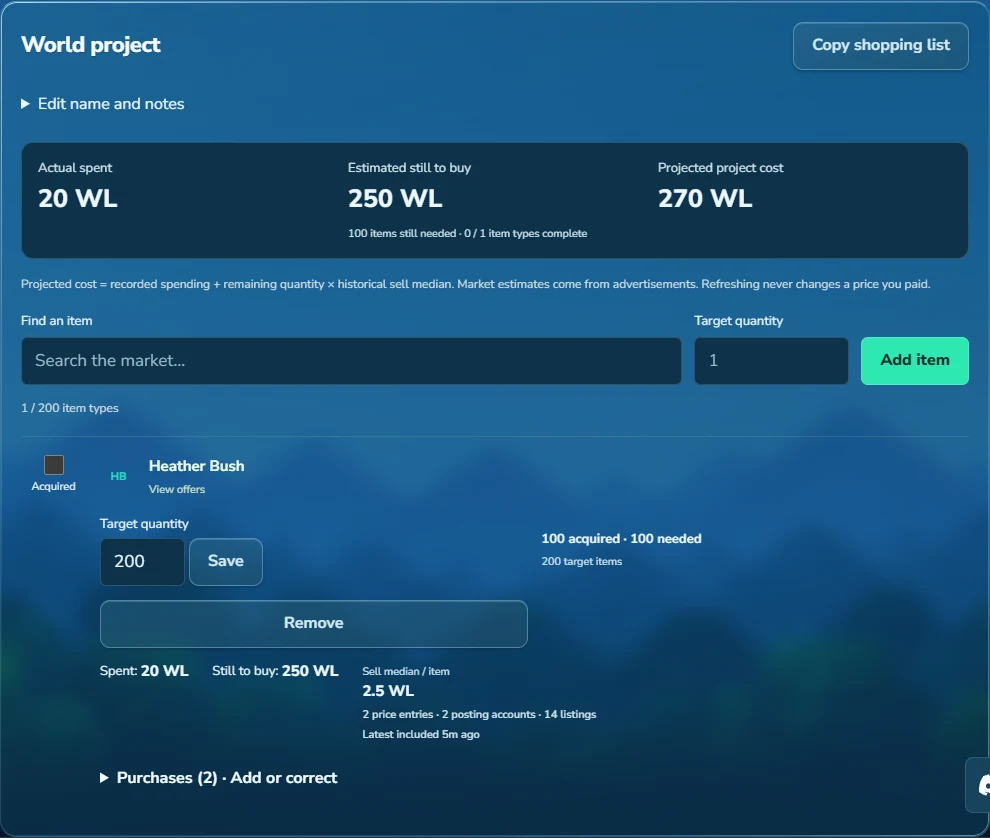 View full size
Manage your baskets
How do I correct or remove something?
Select Edit on a purchase, make your changes and select Save correction. Delete removes the purchase and its cost. If you remove a saved item from your watchlist, you can select Undo immediately afterward.
What if I already have the items?
Record the quantity you have and leave the price blank if you don't know it. Use zero only for items you got for free. The Acquired checkbox marks the target quantity as owned without assigning a cost. Purchases you add later count toward that quantity first.
Why is a total missing or partial?
A total is marked partial when a purchase price or market estimate is missing. Missing values aren't treated as zero. Refreshing updates market estimates but doesn't change your recorded spending.
Do baskets sync across devices?
Yes. Log in to the same account to see your private baskets on another device. You can have up to five baskets. Adding an item that's already in a basket keeps its existing target and purchases. Basket items aren't automatically added to Saved items.
Updated 27 September 2026.
