Set up a price alert
Receive a Discord DM when a new listing meets your buying or selling price.
You'll need a verified email and a plan that includes price alerts, plus a connected Discord account with DMs allowed.
Alert delivery
Price alerts are sent to your connected Discord account. Connect Discord before creating or resuming an alert. A blocked DM or disconnected account needs to be fixed on Alerts.
If the site switches off Discord delivery, Alerts shows that matching offers will be saved in Messages. You can create alerts without Discord during that period. Email copies follow Settings → Notifications.
Connect Discord
Connect your account on Alerts and allow direct messages from the Tradetopia server. This step is required while the site uses Discord delivery.
Connect your Discord account
If the page offers Connect Discord, use that button and complete Discord's authorization screen. If it offers Get linking code, follow these steps.
-
Get a linking code
Open Alerts. Under Discord, select Get linking code, then Copy code. Keep the page open. The code expires after five minutes.
-
Use /link in Discord
Join the server using the link on the page. In #commands, choose /link from Tradetopia Manager. Paste your code into the code field and send the command.
-
Confirm the account
Return to Alerts and check the Discord name shown. Select Yes, connect if it's yours, or That’s not me if it isn't.
-
Test your DMs
Open Connection settings and select Send test DM. If it doesn't arrive, check that DMs are allowed from this server and that the bot isn't blocked.
Create an alert
-
Select your item
Select New alert, search for the item and choose it from the results.
-
Choose buying or selling
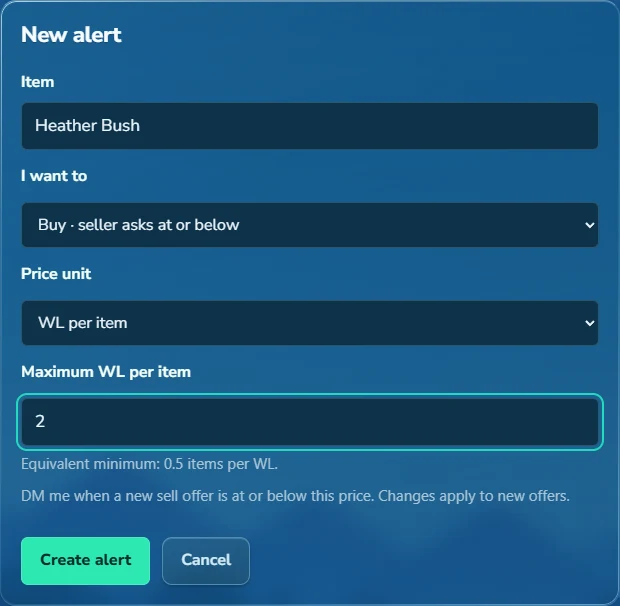
Choose Buy · seller asks at or below if you're buying, or Sell · buyer offers at or above if you're selling. Select the price unit and enter your target price.
-
Save the alert
Select Create alert. It will appear under Your alerts. Check that the item and price are correct and its status is Active.
 View full size
Example: a 2 WL target
For a buying alert, seller prices of 1.5 or 2 WL qualify. A price of 3 WL doesn't.
For a selling alert, buyer offers of 2 or 3 WL qualify. An offer of 1.5 WL doesn't.
Manage your alerts
How do I edit, pause or delete one?
Expand an alert on the website. Use Save target, Pause alert, Resume alert or Delete alert. If you use Discord, use /alerts or My alerts, select the item, then choose Edit price, Pause/Resume or Remove.
If the alert changed in another tab or Discord, your edits stay visible without replacing the newer settings. Copy anything you want to keep, then choose Discard edits and load latest before editing again.
Can I watch both buying and selling?
Yes. Create separate buying and selling alerts for the item. You can save up to 20 alerts in total, including paused alerts. Editing an alert's price doesn't change whether it's for buying or selling.
What if the price uses items per WL?
For a buying alert, set the minimum number of items you want per WL. A target of 20 items per WL matches offers of 20 or 25, but not 10. For a selling alert, set the maximum: a target of 20 matches buyer offers of 20 or 10, but not 25. This is the price ratio, not the number of items in stock.
What should I do when a notification arrives?
In a Discord DM, Original message opens the source post and Price history opens the item page. Check the latest listings, quantity, world and sale conditions before trading. During website delivery, open Messages and select View item.
Troubleshooting
Discord will not connect
For code linking, use a fresh code with Tradetopia Manager’s /link in #commands, then return to the site and select Yes, connect.
The test DM fails
Allow DMs in the server’s privacy settings and unblock the bot if needed. Test again. A failed DM does not switch price alerts to email or website messages. Reconnect and send a test DM before retrying failed alerts.
No alert arrives
Check that the alert is Active, your email is verified and your plan includes alerts. Check your Discord connection and allow DMs. During website delivery, check Messages and your notification settings. Notifications arrive only when a new listing meets your price and buying or selling choice. If the page reports a delivery delay, your alert remains saved.
If an alert shows Retry failed, correct the reported problem before retrying. Delivery details may say that a send could not be confirmed; this does not mean another notification will be sent.
Updated 2 October 2026.
